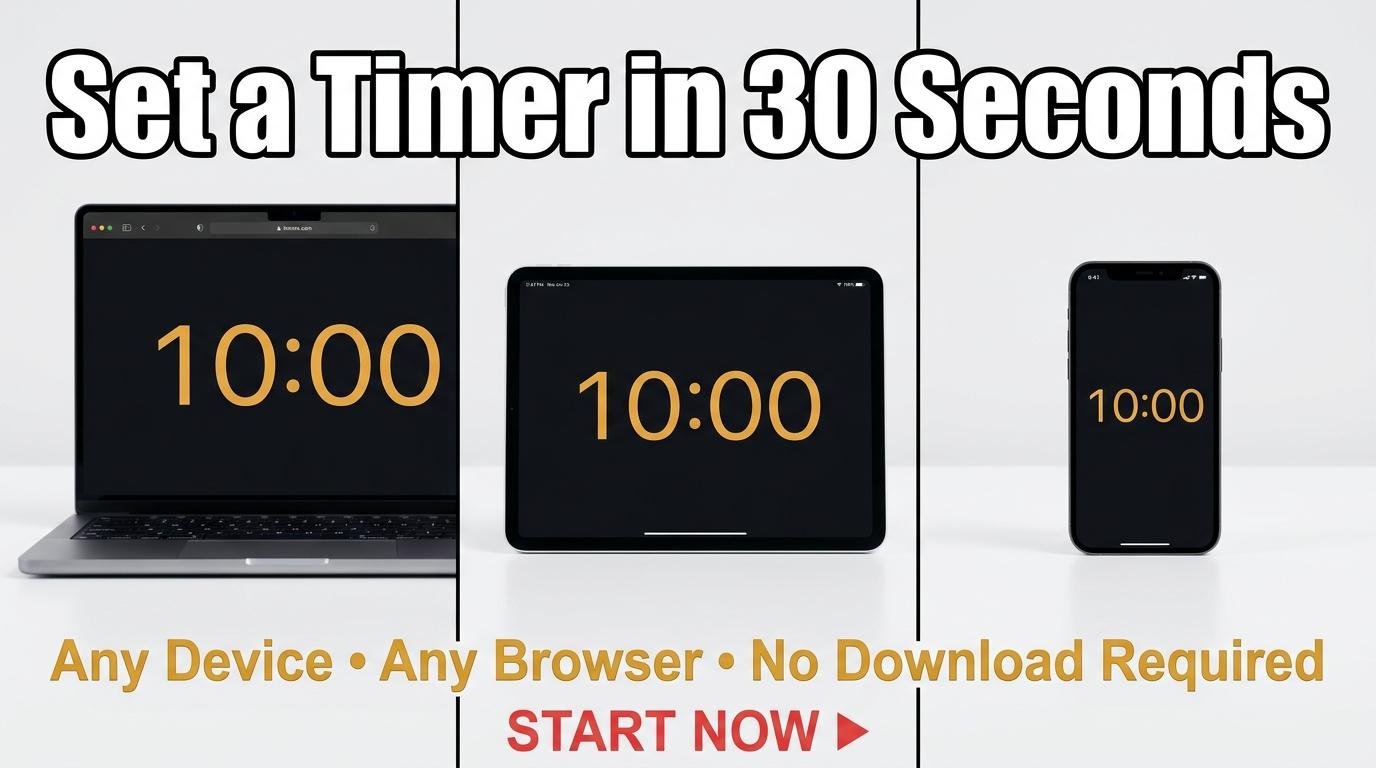
You need a timer right now. Maybe you are boiling eggs, starting a study session, or timing a meeting agenda item. You do not want to search the app store, wait for a download, create an account, or navigate a cluttered interface. You just want to set a timer and start it. This guide shows you exactly how to do that on any device in under 30 seconds using nothing but your browser.
The Fastest Way to Set a Timer on Any Device
Open any web browser on your computer, phone, or tablet. Go to screentimer.net/timer. You will see a countdown timer with up and down arrows for hours, minutes, and seconds. Tap the arrows to set your desired time, or tap one of the preset buttons (1, 3, 5, 10, 15, 20, 25, 30, 45, or 60 minutes) for common durations. Press Start. The timer begins counting down immediately and plays an alarm sound when it reaches zero. That is the entire process. No download, no signup, no account.
For even faster access, you can use direct preset links that open the timer already set to a specific duration. Bookmark any of these for one-click access: 5-minute timer, 10-minute timer, 15-minute timer, 25-minute timer, 30-minute timer, or 1-hour timer.
How to Set a Timer on a Computer
On a Windows PC, Mac, or Chromebook, open Chrome, Firefox, Safari, or Edge and navigate to ScreenTimer. The full-sized display makes the countdown easy to read from across a room. For the best experience, pin the tab by right-clicking it and selecting “Pin Tab.” This keeps the timer accessible in a small tab at the left of your tab bar without taking up space. The countdown time appears in the tab title so you can see it at a glance while working in another application.
To make the timer fill your entire screen, click the fullscreen button in the top-right corner or press F on your keyboard. This is especially useful for classroom displays, presentation timing, and kitchen use where you need to read the digits from a distance.
How to Set a Timer on Your Phone
On an iPhone or Android phone, open Safari, Chrome, or any browser and go to screentimer.net/. The interface automatically adapts to your phone's screen size, showing icon-only navigation tabs that fit comfortably on any mobile display. Set your time and press Start just like on a computer.
To prevent your phone from sleeping while the timer runs, adjust your screen timeout settings. On iPhone, go to Settings, Display and Brightness, Auto-Lock, and select a longer duration or Never. On Android, go to Settings, Display, Screen Timeout. Keeping the screen on ensures the timer keeps running and the alarm fires reliably.
For quick future access, add ScreenTimer to your home screen. On iPhone Safari, tap the share button and select “Add to Home Screen.” On Android Chrome, tap the three-dot menu and select “Add to Home screen.” This creates an app-like icon that opens ScreenTimer instantly without typing the URL.
How to Make the Timer Fullscreen for a Classroom or Meeting
Teachers and presenters frequently need a timer visible to an entire room. Open ScreenTimer on the computer connected to your projector or interactive whiteboard. Set your desired countdown and click the fullscreen button. The digits expand to fill the entire projected display, readable from the back of any classroom or conference room. Use the countdown timer for single durations or the Multi Timer for multiple parallel countdowns during rotation activities.
Choose an appropriate alarm sound for your setting. In a quiet classroom, Gentle Chime or Meditation Bowl provides a soft alert. In a noisy gym or workshop, Urgent Alarm or Rooster Call cuts through ambient noise. Preview sounds by opening Preferences (the gear icon) and clicking through the fifteen available options.
Beyond the Basic Timer
Once you have set your first timer, ScreenTimer offers seven additional tools accessible from the same interface. The Clock shows your current time in digital or analog format with a screensaver mode. The Stopwatch records lap times with CSV export. The Pomodoro timer automates 25/5 work-break cycles. The Multi Timer runs parallel countdowns. The Alarm Clock sets alarms at specific times. The World Clock tracks time in any city. And the Event Countdown counts down to birthdays, holidays, and special dates.
All eight tools work in any browser on any device with no installation, no account, and no cost. Open the browser, set the timer, and get back to what matters.

Leave a Reply