Searching for a timer online with alarm sounds simple until you discover that many online timers either have no sound at all, use a single annoying beep, or require you to stare at the screen to notice when time is up. A good timer online with alarm should let you set any duration, choose a pleasant alarm sound, and reliably alert you even when you are working in another browser tab. This guide explains how to set one up properly and avoid the common pitfalls.
How to Set a Timer Online with Alarm in 30 Seconds
Visit ScreenTimer’s Timer tab. Use the up and down arrows to set your desired hours, minutes, and seconds, or tap one of the quick preset buttons for common durations: 1, 3, 5, 10, 15, 20, 25, 30, 45, or 60 minutes. Press Start. When the timer reaches zero, your selected alarm sound plays automatically. That is the entire process. No account needed, no download, no configuration beyond choosing your time.
Choosing the Right Alarm Sound
ScreenTimer includes fifteen alarm sounds, all generated in your browser instantly. For cooking and kitchen timing, Classic Bell or Digital Beep provides a clear, hard-to-miss alert. For study and work sessions, Gentle Chime or Morning Birds offers a softer transition that does not break your concentration harshly. For workouts and high-energy activities, Urgent Alarm or Military Bugle cuts through background noise. For meditation and relaxation, Meditation Bowl delivers a warm, resonant tone that gently brings you back.
You can preview any sound before setting your timer. In the Alarm tab, use the sound dropdown and Preview button to audition each tone. In Preferences (the gear icon), select your default alarm sound and it applies to all timers, Pomodoro sessions, and alarms across the entire tool.
Making Sure the Alarm Actually Fires
The number one reason online timer alarms fail is that the browser tab gets closed or the device goes to sleep. Here is how to prevent both:
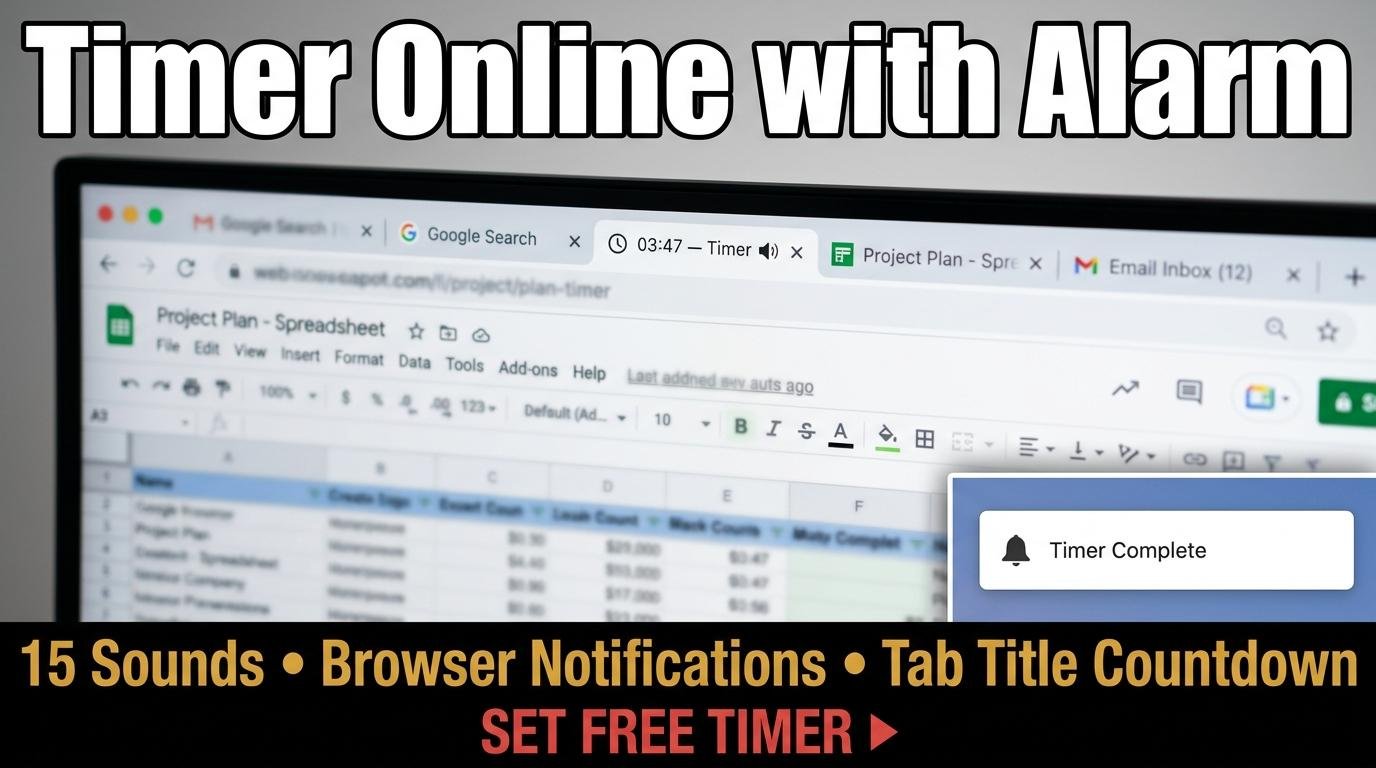
Pin the ScreenTimer tab in your browser by right-clicking the tab and selecting “Pin.” Pinned tabs stay open even when you close other tabs and use minimal resources. The timer countdown appears in the pinned tab’s title, so you can monitor it visually at all times.
Enable browser notifications in ScreenTimer’s Preferences. This allows the timer to send a system-level notification even when the tab is not the active tab. You will see a notification popup from your operating system when the timer ends, regardless of which application you are currently using.
On mobile devices, adjust your screen timeout to prevent the phone from sleeping during the timer. On iPhone, set Auto-Lock to Never while timing. On Android, increase Screen Timeout or enable the developer option “Stay Awake” while charging.
Advanced Alarm Features
Beyond the basic countdown alarm, ScreenTimer offers several advanced timing features. The Repeat toggle automatically restarts the timer when it ends, creating an infinite loop that is perfect for interval-based activities. The Count Up feature (enabled in Preferences) keeps the timer running past zero, showing you exactly how much overtime has elapsed. The last-10-second tick sound plays a subtle click during the final countdown, giving you an audible warning before the main alarm fires.
The browser tab title shows the remaining time in real time, formatted as “14:32 — Timer.” This means you can work in another application entirely and still see the countdown in your taskbar or tab bar without switching back to ScreenTimer.
When a Timer Online with Alarm Is Not Enough
If you need multiple alarms at specific clock times rather than countdown durations, use ScreenTimer’s Alarm Clock tab instead. If you need multiple simultaneous countdowns, use the Multi Timer. If you need automatic work-rest interval cycling, use the Pomodoro timer or the Interval Timer in the Timer tab. All of these tools share the same fifteen alarm sounds and preference settings, so your chosen alarm tone stays consistent across every timing need.
A reliable timer online with alarm is one of those small tools that saves minutes every day without you noticing. Set a 10-minute timer right now and test the alarm sound. Once you have confirmed it works on your device, you have a free, always-available timing tool ready for anything your day throws at you.

Leave a Reply